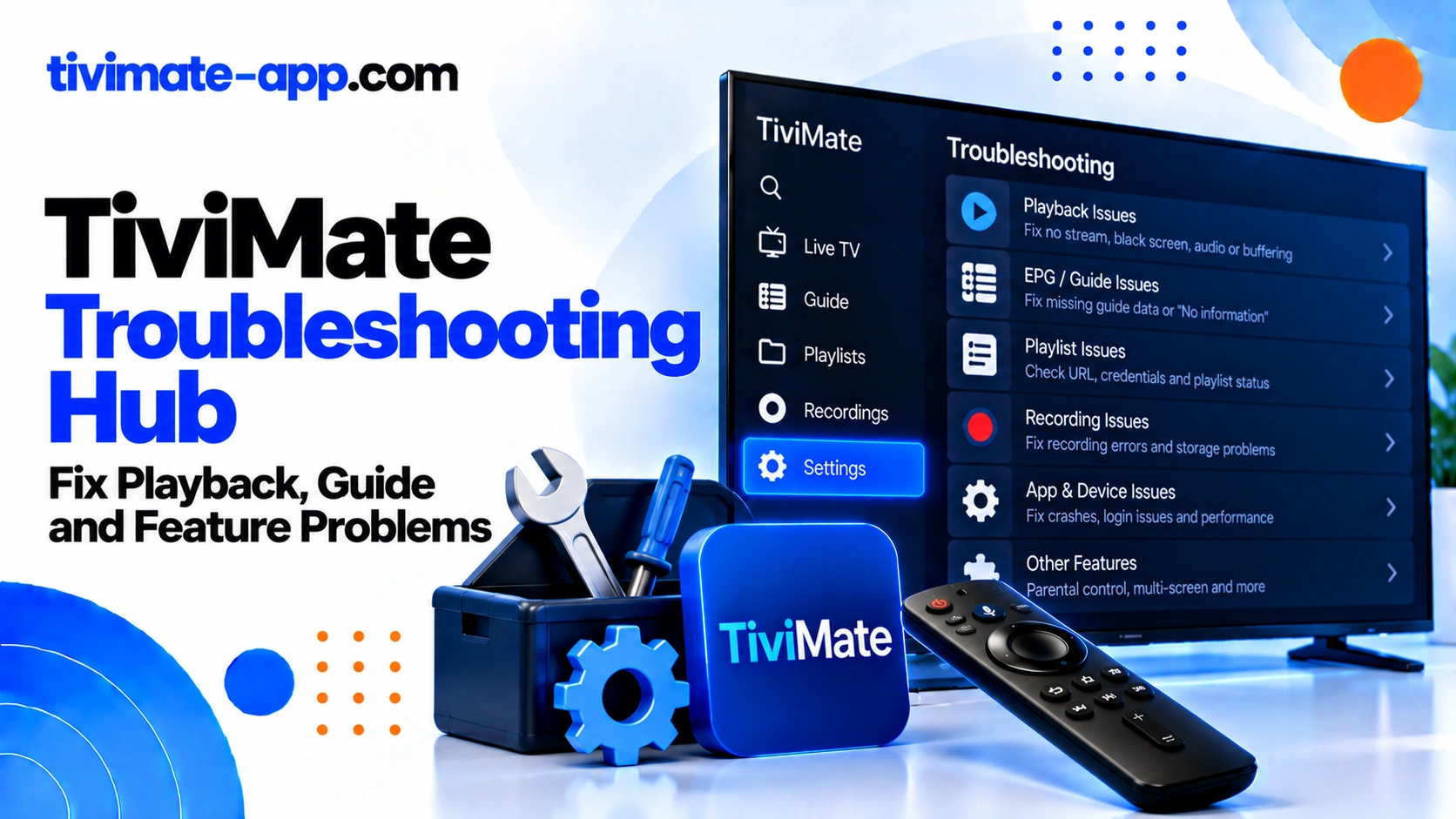
Symptom triage
| Symptom | Failing layer | Open this guide |
|---|---|---|
| App will not install or open | Device and APK source | APK download |
| No channel list | Playlist or account | M3U or Xtream Codes |
| Buffering or freezing | Stream, network, or player | Buffering fix |
| Guide says No Information | EPG source, mapping, or time | EPG setup or EPG fix |
| Error 458 | Provider-side status code | Error 458 checklist |
| Missing features | License or playlist type | Premium |
Start with this quick decision tree
If TiviMate will not install or open, check device compatibility, official download source, storage, and software updates. If the app opens but has no channel list, check playlist type, URL, credentials, and account status. If channels appear but will not play, test several streams and check network and provider availability. If video plays but guide data is missing, focus on EPG source and channel mapping. If playback freezes, compare other channels and apps before changing advanced settings.
Installation and app startup
Use the official source and verify that your device is supported. Restart the device, check available storage, and confirm that installation completed. Avoid modified APKs and unknown download sites. If the app crashes at launch, record the device model, operating-system version, app version, and exact behavior before contacting support. Do not clear all data or factory-reset the device as the first response.
Playlist will not load
Determine whether you were given an M3U URL or separate Xtream Codes fields. Choose the matching method and copy details exactly. Check for missing characters, spaces, an expired URL, or a changed server address. If the same details fail on another compatible player, the provider or account may be the issue. Treat any URL containing credentials as private.
Channels load but playback fails
Test multiple channels and note whether one or all fail. A single unavailable stream may be a source-side problem. If every stream fails, verify account status, server address, internet access, and any simultaneous-connection limits. Ask the provider to confirm the service is online rather than repeatedly reinstalling TiviMate.
Buffering, freezing, or stuttering
Compare playback across several channels and another streaming app. If multiple apps buffer, improve Wi-Fi, reduce network congestion, or test Ethernet if available. If only one provider’s streams buffer, ask about server load. Change buffer, decoder, or User-Agent settings only when you have a reason, and test one change at a time.
EPG says No Information
Check whether an EPG source is configured, whether the update succeeds, and whether the source covers the missing channels. If only some channels lack information, investigate channel IDs and mapping. If all programme times are shifted, check device time zone and any EPG offset. Do not assume Premium will create guide data that the source does not provide.
Premium or Companion activation
Check the current official activation instructions, purchase status, and account used for the purchase. Confirm that your device is supported by the activation process. Premium unlocks app features but does not provide a channel subscription. Avoid unofficial activation services and never give them your playlist password.
Recording and storage issues
Confirm that recording is supported by your app version and source setup. Check free space, write permissions, destination availability, and whether the device will remain powered on for a scheduled recording. Catch-up is different from local recording and depends on provider support. Test a short recording before relying on a long one.
Backup and restore problems
Use the app’s Backup/Restore controls if available. Store the backup securely because it may contain private playlist details. Check file integrity, app-version compatibility, and storage access on the new device. Do not delete the old setup until playlists, EPG, and playback are confirmed working on the new device.
When to contact support
Contact the app publisher for installation, app crashes, or licensing issues. Contact the playlist/EPG provider for account access, stream availability, source URLs, or guide coverage. Include the device model, app version, exact error, affected scope, and checks already performed. Redact passwords and full playlist URLs.
Related guides
Use contextual links to the dedicated articles: TiviMate APK Download, Setup Guide, Add M3U Playlist, Add Xtream Codes, EPG Setup, EPG Not Working, Error 458, Buffering Fix, Premium, Recording, and Backup & Restore.
Use the correct support owner
The app publisher is the right contact for app crashes, licensing, or a repeatable interface bug. The playlist provider is the right contact for account validity, server status, stream addresses, and source-side EPG data. Your device manufacturer or network provider may be relevant when the device itself loses connectivity or multiple apps fail. Sending every issue to one party often causes delays because each party controls a different part of the setup.
Information that makes troubleshooting faster
Before asking for help, gather the exact error message, the device model and OS version, TiviMate version, whether one or all channels are affected, whether EPG works, and what you already tested. Include the approximate time the problem started. Remove passwords, full playlist URLs, usernames if unnecessary, and private purchase details from screenshots. A precise symptom description is more useful than a vague “not working” report.
Avoid destructive fixes until the cause is clearer
Clearing app data, uninstalling, restoring a backup, or factory-resetting a device can remove working configuration. Before taking those steps, determine whether the issue is installation, playlist, stream, EPG, or network-related. Save the current settings where possible. A server-side outage or expired account will remain broken after a factory reset.
A reusable troubleshooting report
Use a short report containing: device and OS version; TiviMate version; symptom and exact error; whether one or all channels are affected; whether EPG works; whether other apps work; the time the issue began; and steps already tried. Redact credentials and private URLs. This format helps support teams reproduce the issue without asking for the same basic details several times.
Keep a known-good baseline
Before advanced changes, record the last configuration that worked. Back up settings where supported and test one change at a time. If a fix fails, return to the baseline. This is especially useful for User-Agent, decoder, buffer, EPG offset, and network changes, because changing several at once makes the result difficult to interpret.
How to use this hub efficiently
Start with the earliest stage at which the problem appears: install, open, import playlist, play stream, load EPG, activate Premium, or record. Follow only that path first. If the problem changes—for example, the playlist starts loading but playback fails—move to the next stage instead of repeating earlier steps. Use the dedicated article linked from the relevant section for detailed instructions, and return here if the symptom changes. This hub should serve as a navigation page, not duplicate every child article in full. Keep the internal links contextual and ensure each destination exists at its final URL before publishing.