What the backup carries
| Item | Carried? | Note |
|---|---|---|
| Settings, playlists, groups, favorites, schedules | Yes | The core value of the file |
| Premium license and provider account | No | Re-verify separately |
| External recording files | No | Move them by hand |
| Version-specific quirks | Sometimes | Verify everything after restore |
What a backup can and cannot do
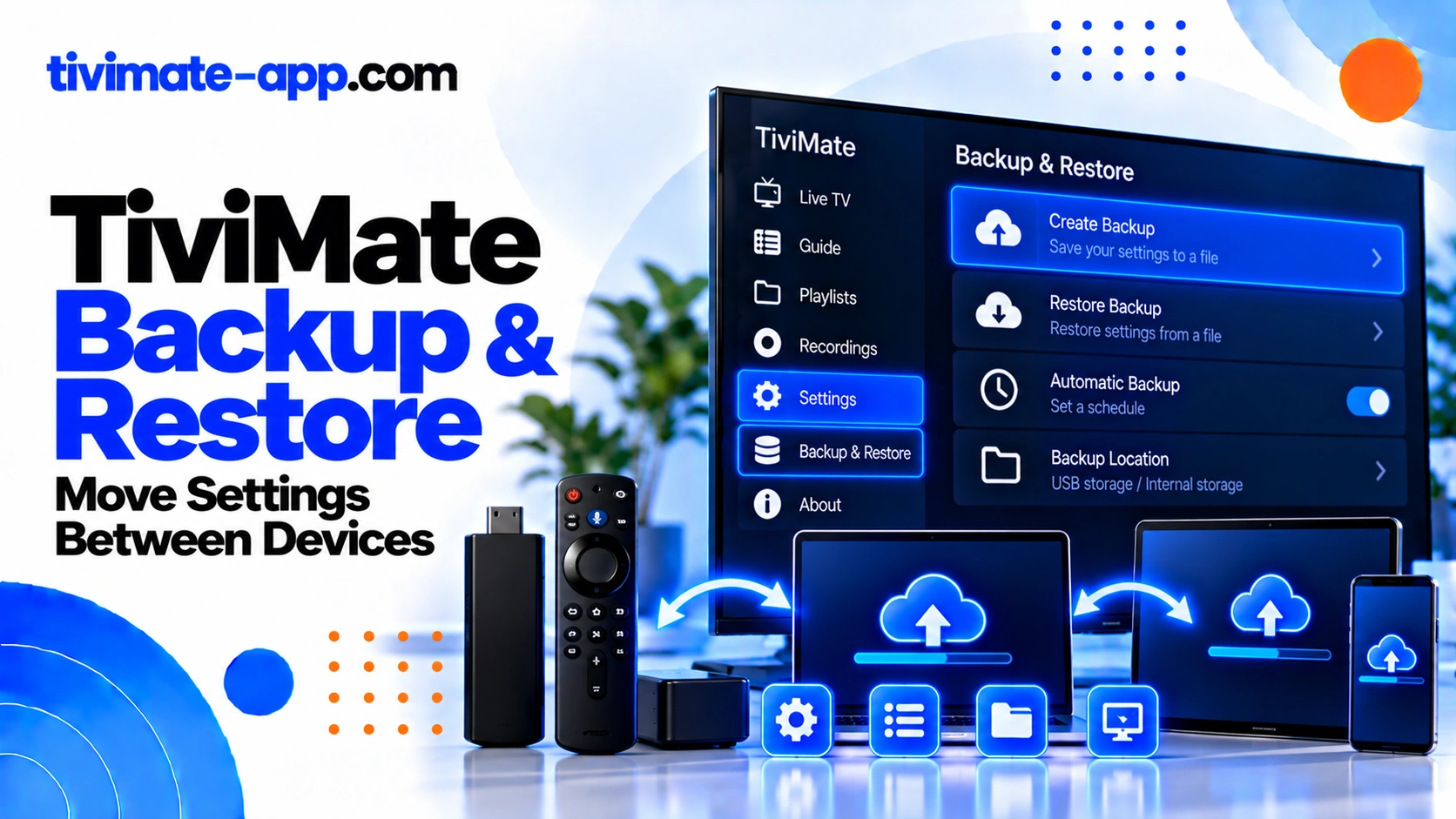
A backup can preserve supported app configuration, which may save time when replacing a streaming device or recovering from a settings mistake. Exact contents and compatibility depend on the app version. Do not assume a backup transfers Premium ownership, external files, device permissions, or every provider credential. Follow current official instructions and verify the restored setup manually.
Create a backup on the old device
Open TiviMate settings and locate Backup/Restore. Choose the backup action shown in your version and save the file to a location you can access later. Record the file name and location. If the app provides a success message, confirm that the file actually exists before moving to the next step. Do not overwrite your only working backup until a new one has been checked.
Protect the backup file
A backup may include playlist addresses or account information. Treat it as sensitive, store it in a private location, and avoid public file-sharing links. If you use removable storage, keep it physically secure. Do not send the backup to strangers who offer to troubleshoot your service; share only the minimum diagnostic information necessary.
Transfer the file to the new device
Use a transfer method available on both devices, such as trusted removable storage or a private local transfer. Ensure the file copied completely and is in a location that the new device can access. Some Android TV devices restrict access to particular folders, so the app’s file picker may not show every directory. Follow the platform’s current storage permissions guidance.
Install TiviMate on the new device
Install the app from an official source and confirm the new device is supported. If you are replacing hardware, keep the old device intact until the new setup is verified. Do not install a modified APK simply to make a backup appear compatible. If the app version differs, check current instructions before restoring.
Restore the backup
Open Backup/Restore on the new device, choose the restore action, and select the correct file. Confirm the prompt only after checking that you have the intended backup. Allow the process to finish and restart the app if requested. Menu labels and file-picker behavior can vary by app and operating-system version.
Verify the restored setup
Check that playlists appear, channel groups and Favorites are present, EPG sources update, and playback works on several channels. Revisit storage paths if recording was configured on the old device; a folder or USB drive from the old device may not exist on the new one. Confirm Premium activation separately through the current official process.
If restore fails
Check that the file is intact, accessible, and compatible with the app version. If the old device still works, create a fresh backup and transfer it again. Check available storage and file permissions. Do not delete the old setup until the new one is confirmed. If the app reports an error, record the exact message and version information before asking for support.
Common mistakes to avoid
Do not assume that moving a backup also moves external recording files. Do not post the backup online to get help. Do not restore an old configuration over a working new setup without keeping a copy of the current configuration. Do not interpret missing EPG as proof that the entire restore failed; guide sources may need to refresh or be reauthorized.
FAQs
- Does backup transfer Premium ownership? Licensing is separate; follow official activation instructions.
- Can every app version restore every backup? Compatibility can vary.
- Should I share my backup file for support? No, not unless sensitive information has been removed and the recipient is trusted.
- When can I erase the old device? Only after the new device has been verified.
A device migration checklist
Before moving, list the playlists, EPG sources, Favorites, recording destinations, and Premium activation status that matter to you. Create a backup and confirm the file exists. Install TiviMate from an official source on the new device, restore the backup, then verify each item. External USB paths may differ, and licensing may need separate activation. Keep the old device untouched until the new setup passes the tests.
If the backup file is not visible
The file picker may not show every folder because Android TV storage access varies by device and version. Check the location where the backup was saved, move it to a folder the app can access, and confirm the copy is complete. Avoid renaming the file extension or editing its contents. If the app cannot read it, create a fresh backup on the old device and consult current official instructions.
Securely retire the old device
Once the new setup works, remove private account details from the old device if you plan to sell, give away, or recycle it. Make sure you have kept a secure copy of any configuration you still need. Do not upload the backup to a public drive simply to make migration easier. Treat the backup as potentially sensitive even if it looks like an ordinary settings file.
Do not confuse settings migration with media migration
A TiviMate backup may preserve app configuration, but it does not necessarily copy recorded video files, external drive contents, or license activation. Move those items separately when required and confirm the destination paths on the new device. A restored recording path can point to a drive or folder that no longer exists.
Verify the new setup before wiping the old one
Check playlist loading, playback, EPG refresh, Favorites, storage destinations, and Premium status on the new device. Keep the old device available until these tests pass. If something is missing, compare the old and new configuration and consult the current official instructions. Do not assume a failed restore means every item must be reconfigured from scratch.
Migration acceptance test
Treat a restore as complete only after checking the items you actually use: playlist import, playback across several channels, EPG refresh, Favorites, groups, storage paths, and Premium activation. Confirm that external recording files are present separately if you need them. If the new device uses a different folder structure or USB mount, update the destination path. Keep the old device and backup untouched until the new configuration has passed these tests. If a single item is missing, investigate that item rather than assuming the entire restore failed. This approach reduces the risk of losing a working setup while troubleshooting a partial migration.