M3U vs Xtream Codes
| You received | Use this flow | It carries |
|---|---|---|
| One complete URL | M3U Playlist | Stream addresses in a text list |
| Server plus username and password | Xtream Codes login | An account connection |
What an M3U playlist is
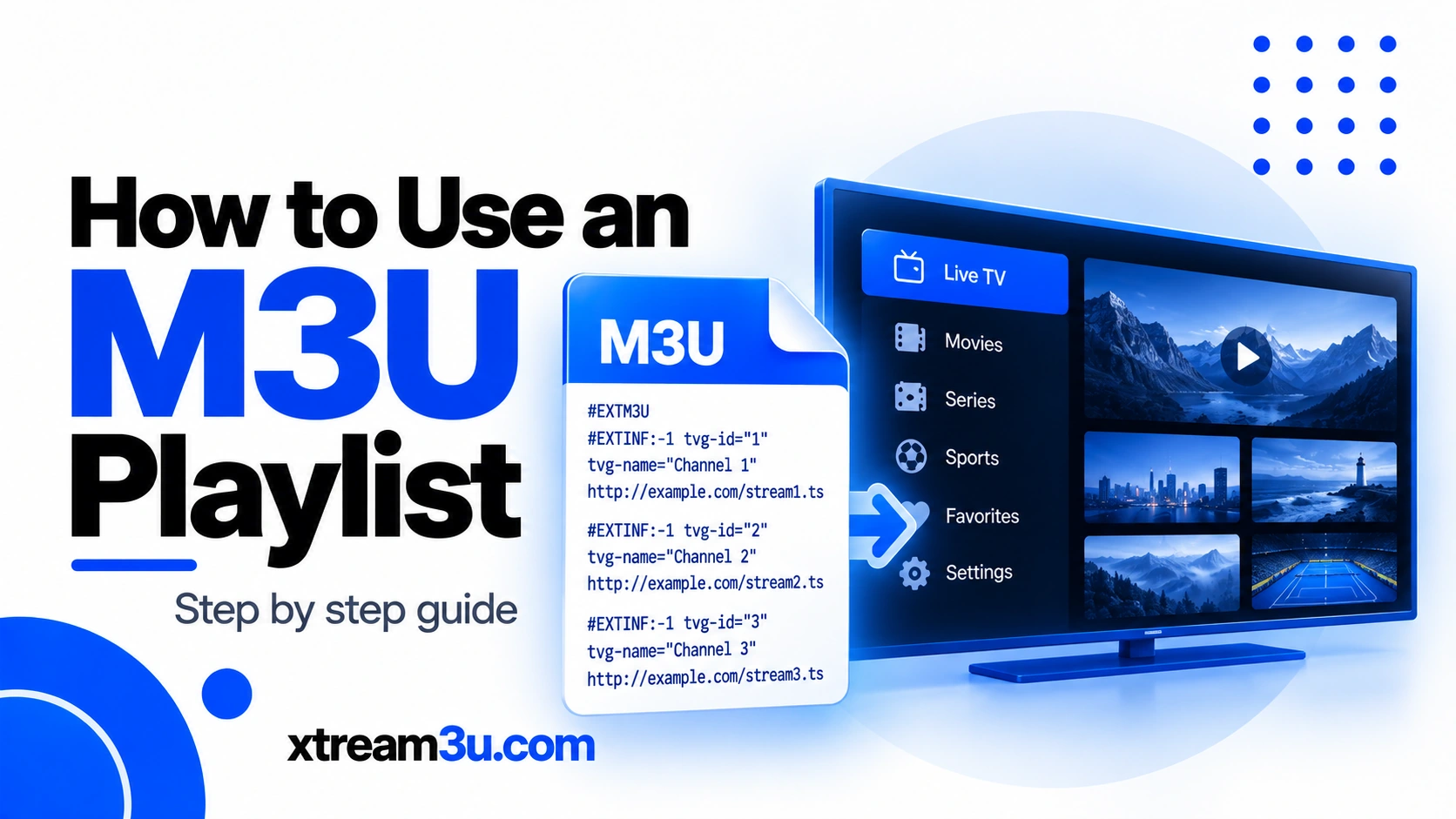
An M3U playlist is a text-based list that can point a player to media streams and may include channel names, groups, and metadata. The URL may also contain account credentials. It is not the same as EPG data: the playlist can load channels while programme information remains missing. Use only playlists you have permission to access.
Find the correct URL
Use the complete M3U URL supplied by your provider. Do not substitute an EPG/XMLTV URL, a portal address, or an Xtream Codes server address unless the provider explicitly gives you a full M3U URL. If you have separate username and password fields rather than a single URL, check whether the Xtream Codes method is the correct option for your setup.
Add the playlist in TiviMate
Open TiviMate and go to playlist management. Choose Add Playlist and select M3U. Enter the complete URL, including its query string and any required parameters. Save the playlist and allow it to import. Menu wording can differ between versions, but the key is to choose the M3U playlist type rather than a login method that expects separate fields.
Check the URL without exposing it
Look for accidental spaces, a missing character, a truncated link, or line breaks introduced by a message app. Because the URL may authenticate your account, do not share screenshots or paste it into a public URL checker. If you test it in a browser, remember that the address may be saved in browser history. Ask the provider for a fresh URL if you suspect the link has expired.
Playlist fails to load
First confirm that the source is still active and that your device has internet access. Re-enter the URL carefully and ensure you selected M3U. If the same link fails on another compatible player, the source or account may be the issue. If the provider has changed its server address, an old saved URL may no longer work. Avoid installing a different app before checking the source.
Playlist loads but channels do not play
A successful import only proves that the playlist could be read; individual stream URLs can still be unavailable. Test multiple channels. If only one fails, report that channel to the source provider. If all fail, check account status, simultaneous-connection limits, network access, and server availability. Refreshing the playlist may update changed stream addresses if the source provides them.
Some channels or groups are missing
The source may have changed its playlist, filtered groups, or removed streams. Refresh the playlist and compare the result with the provider’s current information. Do not assume TiviMate deleted channels simply because the source no longer includes them. If the playlist is very large, allow time for processing and avoid adding duplicate copies.
EPG is missing after adding M3U
M3U metadata can include guide identifiers, but it does not guarantee that complete EPG data is available. Check whether the provider includes a guide source or provides a separate XMLTV URL. If the guide is empty, verify the EPG source and update it. If only some channels lack information, compare channel IDs and guide coverage.
Privacy and lawful access
Treat the M3U URL as a secret when it contains credentials. Redact the server, username, password, and token before sharing a screenshot. Do not use unknown “free playlist” sites that require your login. A player does not grant rights to content; ensure the source is authorized to distribute the streams you access.
FAQs
- Can I add more than one playlist? Limits depend on the app version and features available.
- Does an M3U playlist always include EPG? No.
- Why did it stop working? It may have expired, changed, or become unavailable.
- Should I send you my full URL? No; describe the error and redact credentials.
A safe URL validation checklist
Without revealing the URL, compare it character by character with the provider’s original message. Check the scheme, host, port if present, path, and query parameters. Be especially careful when a messaging app wraps a long URL onto several lines. Do not remove punctuation just because it looks unusual; some characters are part of the authentication string. If the provider can issue a fresh URL, ask for a replacement rather than trying to reconstruct an address from memory.
Why a playlist can import but still be unreliable
A playlist is essentially a list of entries, not a guarantee that every stream will remain online. The file may contain duplicate channels, old addresses, channels outside your subscription, or streams that are temporarily unavailable. After importing, test a representative sample and note whether the failures are isolated or widespread. If the same entries fail consistently, send the provider the channel names and timestamps rather than sharing the complete credential-bearing playlist.
When to refresh and when not to refresh
Refreshing can help when the source has changed its channel list or stream addresses. It will not fix a suspended account, a server outage, or a URL that is no longer valid. Before refreshing, note the symptom and whether Favorites or custom organization might be affected by the operation. If the source itself is down, wait for confirmation from the provider rather than repeatedly deleting and recreating the playlist.
When the provider changes a playlist
A provider may change its server address, remove channels, or issue a replacement URL. If a previously working playlist stops loading, ask whether the address or account changed before rebuilding the setup. Save the replacement details securely and verify them privately. Do not post the old or new credential-bearing URL to ask the public to test it.
How to document a reproducible failure
Record the time of failure, whether the list imports, how many channels fail, and whether the same source works on another supported player. These observations help the provider identify an expired URL, server outage, or stream-specific issue. Redact credentials from screenshots and avoid sending private playlist URLs through unverified support accounts.
Checklist for a clean M3U import
Before saving, verify that the address is complete and came from your service. Make sure the selected input method is M3U rather than a login form that expects separate credentials. Wait for the import to finish and check whether channel groups appear. If the list is empty, verify the source and account. If groups appear but a few channels fail, treat it as a stream-level issue. If every stream fails, check provider status, connection limits, and network access. If video works but the guide is blank, move to EPG configuration. Do not add duplicate playlists repeatedly as a substitute for diagnosis. If the provider issues a replacement URL, update it securely and keep the old URL private because it may still contain working credentials.