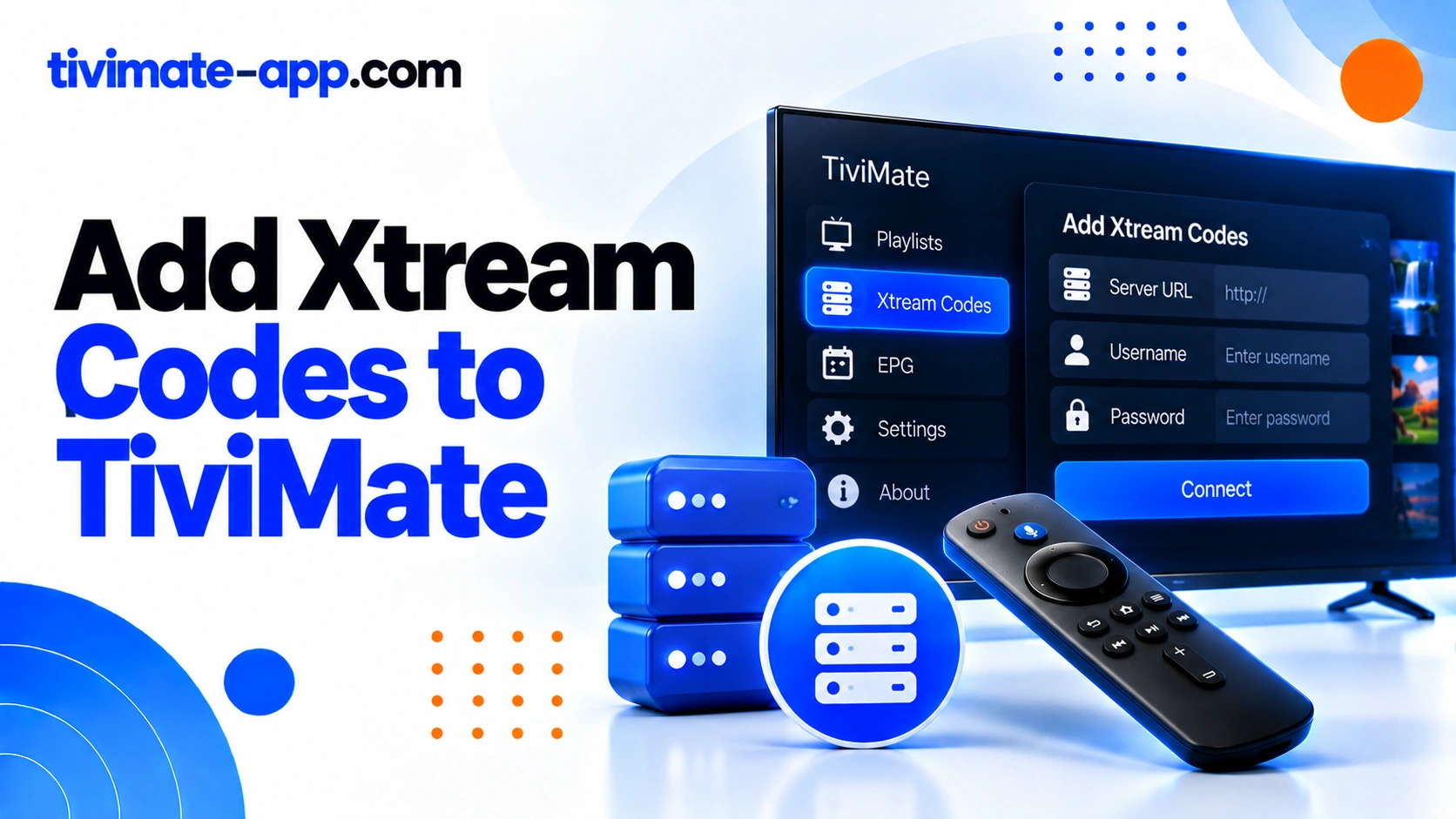
The four fields
| Field | What to enter | Rule |
|---|---|---|
| Playlist name | Any local label | Your choice |
| Server URL | Exact address with scheme and port | Copy verbatim |
| Username | Account login as supplied | No edits |
| Password | Account secret | No added spaces |
What the Xtream Codes fields mean
The server address tells the app where to request playlist information; the username and password identify the account. Some providers include a port or a specific protocol in the server address. Follow the provider’s exact format. Do not invent a path or append a guessed M3U endpoint, because that can create a malformed address.
Choose the correct login method
Open TiviMate’s playlist area and choose Add Playlist. Select Xtream Codes login if the app presents that option and your service supplied separate server, username, and password fields. If the provider supplied one complete M3U URL, use the M3U method. Mixing the two formats is a common source of failed setup.
Enter details accurately
Copy the server address and credentials exactly as provided. Check for leading or trailing spaces, missing punctuation, and an omitted port. Do not confuse the server address with a website login page or an EPG URL. Save the information and wait for the app to retrieve the playlist. Avoid rapidly submitting the same credentials multiple times if the server is slow.
Confirm the playlist imported
After the login completes, inspect the channel groups and test several streams. If the list is empty, the credentials may be wrong, the service may be inactive, or the server may be temporarily unavailable. If the channels load but playback fails, the issue may be stream availability or a connection limit rather than authentication.
Troubleshoot login failures
Recheck each field against the original provider message. Confirm that the subscription is active and the server address has not changed. If the same details fail on another compatible player, ask the provider to verify the account. Avoid sharing your credentials with unofficial “checker” websites or support accounts that are not associated with your service.
If channels load but the EPG is empty
Some services supply guide data through the login; others require a separate EPG source. Check TiviMate’s EPG settings and the provider’s instructions. If only some channels lack guide data, compare channel identifiers and the guide’s coverage. Re-entering the password will not fix mismatched channel IDs.
Connection limits and account sessions
A provider may limit the number of simultaneous streams. Close playback on other devices and wait briefly before testing again. Ask the provider whether sessions can remain active after an app is closed and whether the plan has a device limit. Do not assume every authentication error means the password is incorrect.
Privacy and security
Xtream Codes credentials can grant access to an account and may be embedded in generated URLs. Keep them private, use a password manager if appropriate, and redact details from screenshots. Do not publish a server URL with username and password in a public forum. If credentials are exposed, contact the provider about changing them.
FAQs
- Are Xtream Codes and M3U the same? No; they are different playlist access methods.
- Can TiviMate create a username and password? No, the service issues them.
- What if login succeeds but playback fails? Test multiple channels and ask the provider to check stream status.
- Does Premium include an IPTV service? No.
Server address formatting: common traps
The server field should contain the address in the format supplied by the provider. Depending on the service, it may include a protocol and port. Do not add an extra slash, remove a port, replace HTTP with HTTPS, or append a path based on a guess. If the service supplies separate fields for server, username, and password, keep each value in its intended field. A small formatting change can make the server unreachable even when the account is active.
Authentication versus playback diagnosis
If the app refuses to load the playlist, focus first on the server address and credentials. If the playlist loads but video fails, test multiple streams and check provider availability. If only a few streams fail, report those entries. This distinction matters because changing a password cannot fix an unavailable channel, and changing decoder settings cannot repair a rejected login.
What to include in a support request
State whether the error happens before the channel list appears or only after selecting a channel. Include the device model, app version, approximate time, and whether other channels work. Ask the provider to confirm that the server address and account are active and whether connection limits apply. Do not send the password in a public forum; use the provider’s verified private support channel if credentials are genuinely required.
If the provider issues a replacement server
Do not guess the new server address from an old URL. Ask the provider for the complete current details and whether the old login has been disabled. Replace only the affected fields, then test playlist import and playback. If the list loads but video fails, report that distinction rather than sending the password in a public post.
Keep a secure credential record
Store login details in a private password manager or another secure location. If you keep a setup note, record the type of login and device but avoid placing the password in a shared document. If you believe the credentials were exposed, ask the provider whether they can be rotated and remove public posts that contain them.
Checklist for a clean Xtream Codes login
Before saving, compare the server address, username, and password against the original provider message. Confirm that the server field includes the protocol and port if the provider supplied them. Do not add guessed paths or copy the address of a website login page. After saving, wait for the channel list. If login is rejected, verify the account and server with the provider. If the list imports but playback fails, test multiple channels and check the service status. If only the guide is missing, investigate EPG separately. A good support request states which stage failed and the exact error, without publishing the password or a generated credential-bearing URL.