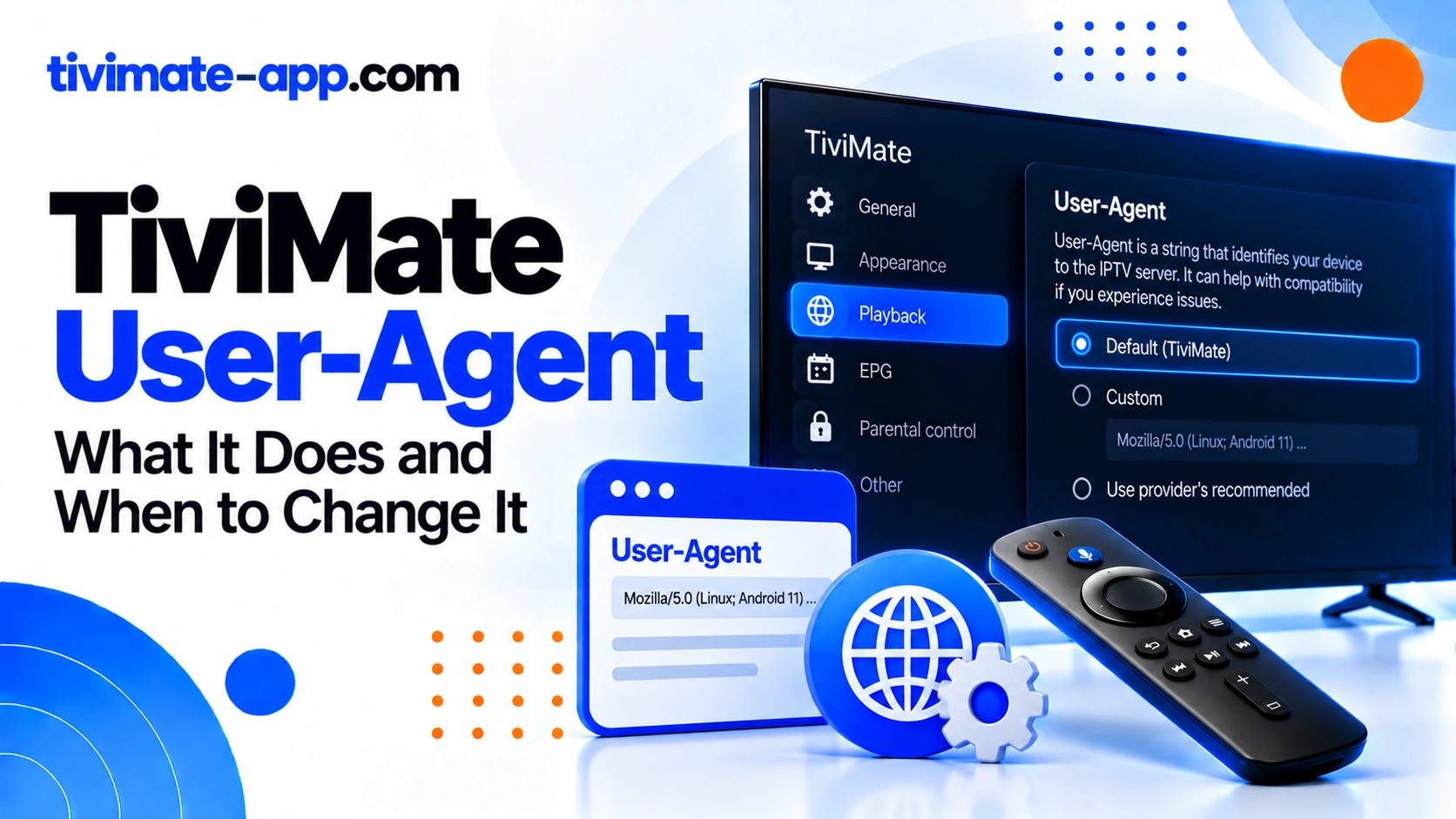
What a User-Agent is
When an application makes an HTTP request, it may include a User-Agent string describing the client. Servers can use that information for compatibility, logging, or access rules. Different apps and versions can send different strings. A server’s behavior depends on its configuration, so a User-Agent that works with one service may do nothing—or cause problems—with another.
Why a provider might ask you to change it
A provider may configure its server to expect a particular client identifier or may have a compatibility issue with a default value. If the provider gives a specific value and explains the symptom it addresses, follow that instruction carefully. Avoid copying arbitrary strings from forums simply because someone claims they are “best for IPTV.”
How to locate and change the setting
Menu locations can vary by TiviMate version. Open the relevant playlist or app settings and look for User-Agent. Before editing, take note of the current value or capture a screenshot with account information hidden. Enter only the value recommended by the provider, save it, and reopen the playlist or app if the change requires a reload. Do not change unrelated playback settings at the same time.
Test whether the change helped
Use a controlled test: choose a channel that failed before the change, then test another channel that previously worked. Compare the result with the original behavior. If nothing improves, restore the previous value instead of cycling through random strings. Keep a brief note of the date, setting, channel tested, and outcome so future troubleshooting starts with evidence rather than guesses.
What User-Agent cannot fix
A User-Agent does not renew an expired subscription, correct a wrong password, restore a deleted channel, or improve weak Wi-Fi on its own. If all channels fail, check the playlist and account first. If only one stream fails, the stream may be unavailable. If every app on the device buffers, investigate the network. If EPG is blank, verify the EPG source and channel mapping before changing User-Agent.
How it relates to authentication and server errors
Some servers apply custom rules based on client headers, but error codes are not universally defined by TiviMate. A code such as 458 may be generated by a provider’s server and can have provider-specific meaning. Record the exact message and ask the provider what it means for that service. Do not assume a User-Agent change is appropriate just because an error code appears.
Privacy and security considerations
A User-Agent string is not usually a password, but it can influence how a server handles a request. The more important secret is often the playlist URL or login details. Never include full credentials in a screenshot or public support post. Use official app sources and avoid tools that request your streaming login merely to suggest a setting.
A practical troubleshooting order
First establish the scope of the problem: one channel or all channels. Second, verify that the playlist and account are active. Third, test the network and provider status. Fourth, consult the provider for any required User-Agent. Only then change the setting, one variable at a time. This order reduces the risk of turning a simple account issue into a confusing collection of altered settings.
FAQs
- Is there one best User-Agent? No.
- Can it fix buffering? Not reliably; buffering has many possible causes.
- Should I leave it blank? Keep the default unless there is a specific reason to change it.
- Can it fix EPG? Only if the request behavior is relevant; source and mapping checks come first.
A controlled before-and-after test
Before changing User-Agent, choose one channel that consistently fails and record the exact error. Save the existing setting. Make only the provider-recommended change, reload the playlist if necessary, and test the same channel under similar network conditions. Then test a second channel to make sure the change did not break playback elsewhere. If the outcome is unchanged, restore the original value and investigate the source or account instead.
Why random strings make troubleshooting harder
A User-Agent string is not a universal compatibility key. Different servers can inspect headers differently, ignore them, or reject values they do not recognize. Copying a value from a forum without knowing why it was recommended creates another variable and makes results harder to compare. The best evidence is a specific instruction from the service or a reproducible test tied to the error.
Report the context, not just the setting
If you contact a provider, describe the channel, error message, device, app version, and whether the issue occurs with the default User-Agent. Do not include account credentials. Ask whether the server expects a particular client identifier and whether the error is generated by its system. That answer is more useful than cycling through strings from unrelated services.
Do not confuse headers with playlist credentials
The User-Agent identifies the client request; the playlist URL or login authenticates access in many setups. Changing one does not replace the other. If the server rejects the account, first confirm the login and provider status. If the provider specifically identifies a header requirement, test that exact value and document the outcome.
A practical stopping rule
If a provider-recommended User-Agent change produces no repeatable improvement, restore the original value and stop cycling through alternatives. Move to the next evidence-based check: stream availability, account status, network stability, or the provider’s server logs. Endless setting changes make a later diagnosis less reliable.
Decision guide: should you change User-Agent?
Change the User-Agent only when the provider gives a specific value or a repeatable test points to a client-header compatibility issue. Do not change it just because playback buffers or an error code appears. First check whether one stream or all streams fail, verify account status, and confirm the server is reachable. If you do change it, record the original value, test the same channel, and compare the result. If the change does not help, restore the previous setting. Avoid testing multiple strings in succession: each additional change makes it harder to know what caused the result. Include the error, device, app version, and test result when contacting the provider, but never include private playlist credentials.
Change it or leave it
| Situation | Action | Why |
|---|---|---|
| Provider names an exact value for a symptom | Change once; record the original | Reversible targeted fix |
| Buffering, expired login, or blank EPG | Leave the default; fix the real layer | Avoids new variables |
| Random strings from forums | Never copy them | Unverifiable side effects |